
Step 1
Prepare Firestick
- Open Settings
- Go to My Fire TV
- Open Developer Options
- Enable apps from unknown sources or allow Downloader installation access
Learn how to setup IPTV on Firestick in just a few minutes using Downloader, an IPTV player app, and your Xtream Codes login details.
Use this quick guide to jump to the section you need.
Before you setup IPTV on Firestick, make sure you have your Fire TV device, IPTV login details, and a stable internet connection ready.
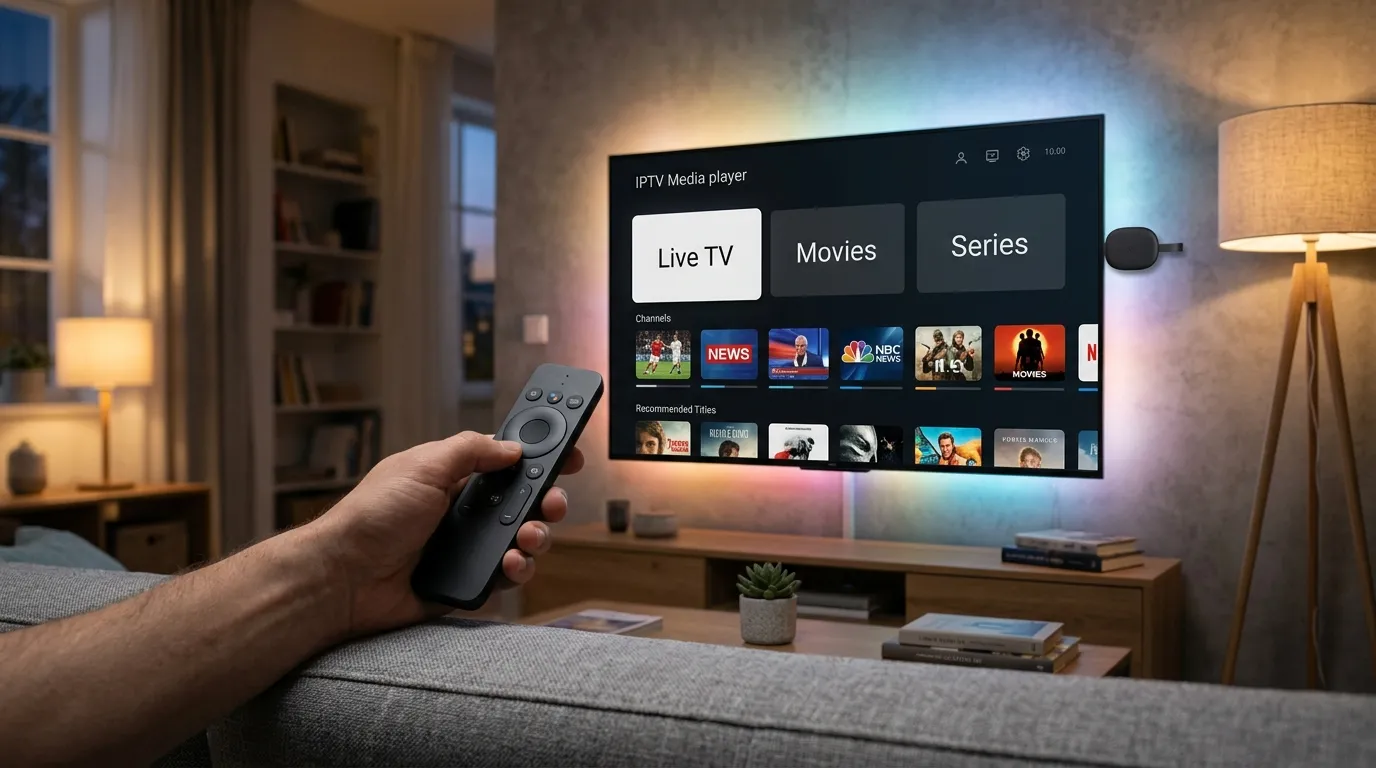
This guide works on Fire TV Stick, Fire TV Stick 4K, Fire TV Stick Lite, and Fire TV Cube devices.
You need the server URL, username, and password sent after your IPTV activation.
A stable connection of at least 10 Mbps for HD and 25 Mbps for 4K is recommended.
If you still need your access details, start with our free IPTV trial, compare IPTV subscription plans, or review the full how to install IPTV guide before setting up your Firestick.
Most users finish this Firestick setup in under 10 minutes.
If you want to compare other setup methods, you can also visit the Android TV setup guide, Smart TV page, Formuler guide, PC setup tutorial, or Android phone setup.
Most Firestick IPTV setups work best with Xtream Codes login because it is simple to enter and usually loads channels, movies, and series more cleanly than a plain playlist link.
After installing the IPTV app, many users delete the APK file from Downloader to save storage space. If your Firestick feels slow, restarting the device after setup can also help.
Here are the most common questions about setting up IPTV on Firestick.
More setup guides: Android TV, Android Phone, Apple iOS, Smart TV, Formuler, PC / Mac.
💬